 Book Sniper
Install Book Sniper on Linux
The same app as on Windows — heatmap, footprint, DOM and tape, your keys encrypted on your machine. 64-bit (x86_64) desktop Linux: Ubuntu 22.04+, Debian 12+, Linux Mint 21+, Pop!_OS 22.04+, Fedora 36+ and other distributions from 2022 on.
1 · Pick your package
cat /etc/os-release in a terminal — the PRETTY_NAME line tells you.Install the .deb (Ubuntu / Debian / Mint / Pop!_OS)
With the mouse: open your Downloads folder and double-click the .deb file. Ubuntu's App Center (or
Software Install / Mint's Package Installer) opens → click Install → enter your password.
Or in a terminal (works everywhere, also shows clear errors):
$ cd ~/Downloads
$ sudo apt install ./BookSniper-x.y.z-x86_64.deb
Then start Book Sniper from your applications menu (search "Book Sniper"), or type booksniper.
./) is better than dpkg -i: it pulls in a recommended browser if needed
and keeps your package database clean. Remove later with sudo apt remove booksniper.Run the AppImage (any distribution)
The AppImage for this version is still on its way — use the tar.gz meanwhile (same app).
With the mouse: right-click the file → Properties → Permissions → tick Allow executing file as program → double-click it.
$ cd ~/Downloads
$ chmod +x BookSniper-x.y.z-x86_64.AppImage
$ ./BookSniper-x.y.z-x86_64.AppImage
sudo apt install libfuse2 (Ubuntu 24.04: libfuse2t64).
No root at all? Run it with --appimage-extract-and-run.Tip: keep the AppImage in a fixed place such as ~/Applications — app updates replace this file in place.
Or unpack the tar.gz (no root needed)
$ mkdir -p ~/Applications && cd ~/Applications
$ tar -xzf ~/Downloads/BookSniper-x.y.z-x86_64.tar.gz
$ ./BookSniper-x.y.z/install-desktop-entry.sh   # optional: adds it to your apps menu
$ ./BookSniper-x.y.z/BookSniper
The app window (Chrome, Chromium, Edge or Brave)
On Linux, Book Sniper draws its window with a Chromium-based browser you already have — as a clean app window with its own icon, no tabs or address bar, and its own private profile (it never touches your normal browsing data). Any of these works: Google Chrome, Chromium, Microsoft Edge, Brave, Vivaldi.
$ sudo snap install chromium        # Ubuntu
$ sudo apt install chromium         # Debian 12
$ sudo dnf install chromium         # Fedora
Without one, Book Sniper opens in your default browser (Firefox works, but the heatmap is fastest in Chromium) and shows a ⏻ Quit button in its top bar.
First run: free account, then connect an exchange
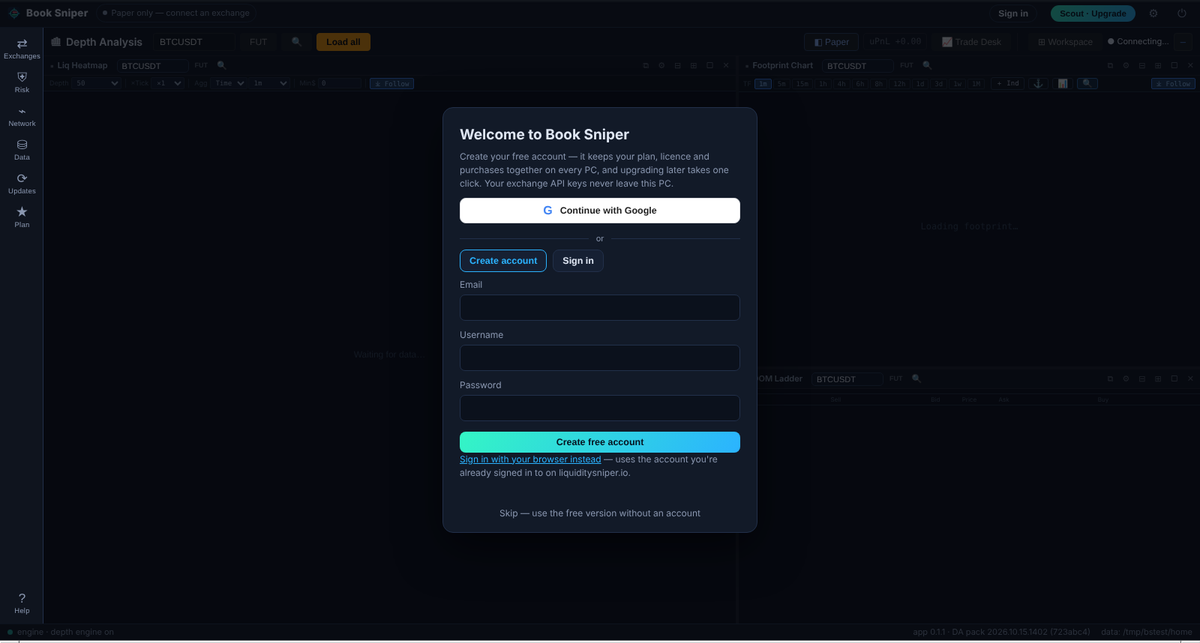
- Account: create a free account (email, Google, or your Liquidity Sniper login) — or skip and use Scout offline.
- Exchange: left rail → Exchanges → API key with trading permission only — never withdrawals. On GNOME/KDE the encryption key for your exchange keys is kept in your desktop keyring (unlocked by your login password), so a copy of your home folder alone can't reveal them.
- Keep running: closing the window while positions, orders or 24/7 strategies are active keeps Book Sniper running; open it again from the apps menu (or the tray icon, where your desktop shows one). 24/7 mode also starts it at login.
Verify your download
$ sha256sum ~/Downloads/BookSniper-*-x86_64.*Compare with the fingerprints we published:
—Identical → it's exactly the file we released (our server also refuses to serve a file that doesn't match the signed release).
Problems & questions
"dependency problems" / "wrong architecture"
The packages are for 64-bit Intel/AMD (x86_64). ARM (Raspberry Pi, Apple-silicon VMs) isn't supported yet. Check with uname -m.
"GLIBC_2.35 not found" on an older system
Book Sniper needs a 2022-or-newer distribution (glibc 2.35+). Ubuntu 20.04 / Debian 11 are too old — please upgrade, or use the Windows version.
No tray icon on Ubuntu / GNOME
GNOME hides tray icons by default. Install the AppIndicator extension (Ubuntu has it on by default), or simply start Book Sniper again from the apps menu — it reopens the running engine instead of starting a second one.
It asks to unlock a keyring
That's your desktop keyring, where the key protecting your exchange API keys is stored. Enter your login password. On desktops without a keyring,
Book Sniper falls back to a key file readable only by your user (~/.local/share/BookSniper, permissions 700).
Updates
Feature updates (new DA tools, fixes) install themselves on every Linux package. AppImage also updates the app itself (signed, then restarts); for .deb and tar.gz the app tells you when a new version is out and opens this page.
Uninstall
.deb: sudo apt remove booksniper · AppImage / tar.gz: delete the file or folder.
Your data stays in ~/.local/share/BookSniper — delete it to remove everything (and the "Book Sniper" item from your keyring).
Still stuck?
Email [email protected] with your distribution (cat /etc/os-release) and what you see,
or use the chat on liquiditysniper.io.